¶ Network menu
| Entry | Content |
|---|---|
| Network home page | State of the links, the modem, the VPN and the interfaces. See Network home page. |
| Port forwarding | Forward a port of the device to an equipment of the network. See Port forwarding. |
| Static routes | Routes to networks reached through another router. See Static routes. |
| TCP ↔ Serial / Serial ↔ TCP | Bridges between a serial port and a TCP connection. See Serial bridges. |
| DHCP Server | DHCP server and address reservations of each interface. See DHCP Server. |
| Network configuration | Hostname, interfaces, Wi-Fi, GSM, DNS, default route. See Network configuration. |
| VPN configuration | Weble VPN service. See VPN. |
¶ Network home page
The Network home page shows the state of the device:
- The State box shows whether the device reaches its gateway, the internet and the VPN server, and the interface used by the default route (via ppp0 on modem when the modem carries the traffic).
- The GSM box shows the state of the modem. See LTE modem and SIM card.
- The VPN Access box shows the state of the VPN service. See VPN.
- The Ethernet Interface, WLAN Interface (Wireless), USB Interface and WAN Interface boxes show the interfaces of the device.
¶ Network configuration
¶ Hostname
Name of the device on the local network. Default: WBox-<model>-<MAC address>. A name refused by the system is rejected when you apply the settings.
¶ Router mode
| Value | Behaviour |
|---|---|
| default | Traffic that the device forwards between its interfaces leaves with the address of the device (NAT). |
| disable | No address translation: the other networks must have a route back to your equipment. |
¶ Proxy
Tick Proxy and enter Host, Port and, if needed, Username and Password when the site reaches the Internet only through a proxy. The VPN service uses it to reach the Weble servers.
¶ Network mode
On devices with two Ethernet ports, Mode sets how the two ports work together: interfaces (default) or bridged.
The Mode field is shown only on models that support bridging (for example G100 and G110).
¶ Mode bridged
The two Ethernet ports work as a switch: they share one address and one network configuration, set in the LAN (ETH0/ETH1) group. Equipment connected to either port is on the same network.
¶ Mode interface (default)
Each port has its own address and network. The device routes between them: equipment that uses the device as its gateway can reach the other network. With Router mode set to default, this traffic leaves with the address of the device (NAT).
By default, the IP address of ETH0 is 192.168.1.99
¶ Default route
Default route mode decides where the device sends the traffic for networks it is not directly connected to (Internet, Weble cloud).
| Value | Behaviour |
|---|---|
| auto (default) | The device picks the interface and switches when a link fails. It prefers an interface that reaches the Weble VPN (WAN, then ETH0, bridge, Wi-Fi, then the mobile modem), then one with Internet access, then one that reaches its gateway. |
| defined | All this traffic goes to the router entered in Default route, whatever the state of the links. |
Default route must be an IP address in the subnet of one of the interfaces; 0.0.0.0 is refused.
¶ ETH0 primary network interface
ETH0 is the primary (LAN) Ethernet interface, configured in the LAN (ETH0) group. It can be configured in one of two addressing modes:
- Static — a fixed IP address, netmask and (optionally) gateway are set manually. This is the default mode. By default ETH0 uses
192.168.1.99with netmask255.255.255.0. - DHCP — the interface obtains its IP address automatically from a DHCP server on the network. A DHCP fallback address can be defined so the gateway stays reachable if no DHCP server answers.
| Parameter | Description |
|---|---|
| DHCP client | Gets the address from a DHCP server. When ticked, the static fields are hidden and the DHCP fallback fields appear. |
| IP address | Static address. Default: 192.168.1.99. |
| IP netmask | Subnet mask. Default: 255.255.255.0. |
| IP gateway | Tick it to set a gateway. It must be in the subnet of the address and differ from it. |
| Secondary address | Adds a second fixed address to ETH0, with its own IP address and Netmask. Default when ticked: 20.20.20.20 / 255.255.255.0. Useful to keep a known service address; a standby device of a redundant pair keeps only this address. |
| DHCP Server | See DHCP Server. Ticking it unticks DHCP client. |
¶ WAN (ETH1) second network interface
On devices with a second Ethernet port, the interface mode shows a WAN (ETH1) group. It has the same DHCP client, DHCP Fallback, IP address, IP netmask, IP gateway and DHCP Server fields as ETH0, but no Secondary address.
By default ETH1 is a DHCP client. If you untick DHCP client, the default static address is 192.168.2.2 / 255.255.255.0 with gateway 192.168.2.1.
In bridged mode both ports form a single interface, configured in the LAN (ETH0/ETH1) group.
¶ DHCP fallback address
When an interface is set to DHCP and no DHCP server answers, the gateway would normally be left without an IP address and become unreachable. To avoid this, each Ethernet interface can be given a DHCP fallback address — a fixed IP that is applied automatically when DHCP does not succeed.
How it works:
- When the interface comes up in DHCP mode, it first tries to obtain a lease from a DHCP server.
- If no lease is obtained within the fallback timeout, the interface is assigned the fallback address so it stays reachable.
- DHCP acquisition keeps being retried in the background at the fallback retry interval. As soon as a real lease is obtained, the interface switches over to it.
By default the fallback address is enabled on both interfaces:
| Interface | Default fallback address | Netmask |
|---|---|---|
| ETH0 | 20.20.20.21 |
255.255.255.0 |
| ETH1 | 20.20.21.21 |
255.255.255.0 |
¶ Parameters
The fallback fields are shown under DHCP client when it is ticked.
| Parameter | Description |
|---|---|
| DHCP Fallback | Turns the fallback address on or off. On by default. |
| DHCP fallback address | Fixed IP address applied when DHCP does not succeed. |
| DHCP fallback netmask | Subnet mask of the fallback address. |
| DHCP fallback timeout | Time to wait for a lease, in milliseconds. Default 5000; the device always waits at least 20 seconds. |
| DHCP fallback retry | Time between two DHCP attempts once the fallback address is applied, in milliseconds. Default 60000 (1 minute); minimum 30 seconds. |
To reach a gateway that has fallen back to its default address, connect your computer to the same interface and give it an address in the same subnet — for example
20.20.20.10/255.255.255.0for ETH0 — then browse tohttp://20.20.20.21.
¶ Wi-Fi
The Wireless field of Network configuration is shown only on devices that have a Wi-Fi interface.
| Mode | Use |
|---|---|
| off (default) | Wi-Fi is disabled. |
| Wireless client | The device joins an existing Wi-Fi network. |
| hotspot | The device creates its own Wi-Fi network (access point). |
¶ Wireless client
| Parameter | Description |
|---|---|
| SSID | Name of the network to join. The search button lists the networks in range. |
| Security | none, WPA2, WEP or custom. |
| Password | Key of the network (WPA2 and WEP). |
| WEP Key number | Index of the WEP key (WEP only). |
| WPA Supplicant | Your own wpa_supplicant configuration (custom only). |
| DHCP client | Gets the address from the Wi-Fi network. Untick it to enter IP address, IP netmask and IP gateway. |
| Bridged | Hides the address and DHCP fields. Use it only on the advice of Weble support. |
¶ Hotspot
| Parameter | Description |
|---|---|
| SSID | Name of the network. Default: Weble-Connect. |
| Security | WPA2. |
| Password | Key of the network. Change the factory password before you install the device on site. |
| Channel | 1 to 12. Default: 6. |
| IP address / IP netmask | Address of the device on the hotspot network. Default: 66.66.0.1 / 255.255.0.0. |
| DHCP Server | Hands out addresses to the Wi-Fi clients (default pool 66.66.0.2 to 66.66.254.254), with Local gateway, Gateway, Netmask, DNS1 and DNS2. |
A Wi-Fi change restarts the network interfaces. When you work remotely, tick Restore previous configuration if not confirmed before you apply it.
¶ GSM
¶ Mode
The GSM field of Network configuration sets the modem mode. The GSM box of the Network home page does the same: Enable service asks for SMS only or Internet, Disable service stops the modem.
| Value | Description |
|---|---|
| internet | The modem connects to the mobile data network. SMS also work. |
| no internet | SMS only (shown as SMS only in the GSM box). Create an SMS gateway to send and receive SMS. |
| off (default) | The modem service is stopped. SMS gateways that use the local modem do not work. |
¶ Parameters
The APN (Access Point Name) is the identifier of the mobile data network given by your mobile operator.
| Parameter | Description |
|---|---|
| pin | PIN code of the SIM card, digits only. Leave it empty if the SIM has no PIN. |
| APN | Access point name given by your mobile operator. Default: gprs.swisscom.ch. |
| APN Username | User name of the APN. Can be empty. |
| APN Password | Password of the APN. Can be empty. |
| Roaming | modem (default): keep the setting stored in the modem. enable / disable: allow or forbid roaming (Quectel modems). |
| Preferred operator | Forces the modem onto one operator. Leave it empty for automatic selection. |
¶ Operator and modem status
Choosing an operator (Preferred operator search, Close dial-up / Keep dial-up scan), the lines of the GSM box, the SIM states and the troubleshooting of the modem are described in LTE modem and SIM card.
To send or receive SMS, run the modem in no internet or internet mode and create an SMS gateway of type LocalModem.
¶ DNS
| Parameter | Description |
|---|---|
| DNS Mode | defined (default): use the two servers below. auto: use the DNS servers received by DHCP. |
| Primaire / Secondaire | Primary and secondary DNS servers. Default: 8.8.8.8 and 8.8.4.4. |
¶ Hosts
Local name entries: each Domain resolves to the Destination IPs you enter, without asking a DNS server.
¶ USB network adapters
The USBS list holds USB network adapters (Ethernet or Wi-Fi dongles). For each adapter set DHCP or Address, Netmask and Gateway, optionally IPv6, and for a Wi-Fi dongle Wireless = client with SSID, Security and Password.
¶ PPP over serial
The PPPDS list opens an IP link over a serial port: Serial Port, BaudRate, Server and Address.
¶ Applying network settings
Click the check mark of Network configuration to apply your changes. The confirmation window offers Restore previous configuration if not confirmed. It is not ticked by default: tick it whenever you work remotely, and set Minutes before the configuration is restored (5 to 60, 5 by default).
After the change, a banner shows the time left with two buttons:
- Confirm keeps the new settings.
- Restore goes back to the previous settings at once.
Without confirmation, the previous settings come back when the time is over. Do not reboot the device during this time: a reboot also brings the previous settings back.
Route and DHCP server changes apply at once. Address, netmask, gateway, DHCP or Wi-Fi changes restart the network interfaces a few seconds after you apply them.
¶ VPN
The VPN Access box shows the state of the VPN service. Use Start service and Stop service to start and stop it, and Restart service to restart it.
Stopping the service cuts remote access to the device through the VPN. If you are connected through the VPN, you lose the page and need a local connection to start the service again. The service stays stopped, also after a reboot, until it is started again.
The VPN configuration form holds the same setting, Enable VPN, and the tunnel options: Tunnel enable, Use only tunnels, and Tunnel available (Websocket over HTTPS, Websocket over HTTP, SSH, HTTP2, SSE over HTTP, SSE over HTTPS). See Weble VPN for more information.
¶ Port forwarding
Port forwarding redirects the connections that reach a port of the device to a port of another equipment of the network (NAT).
¶ Rule properties
Open Port forwarding in the Network menu and add a rule.
| Property | Description |
|---|---|
| Name | Free name of the rule. |
| Listening Port | Port of the device that receives the connections. The HTTP and HTTPS ports of the web interface are refused. |
| Destination | IP address of the equipment that receives the traffic. |
| Destination port | Port on that equipment. |
| Active | Applies the rule. A new rule stays inactive until you tick it. |
In the table, the Destination column shows the listening port; Forward address and Destination port can be edited in place.
For now, it is not possible to define the protocol. When you create a rule, both TCP and UDP ports will be created.
Forward only the ports you need, and untick Active on rules that are not in use.
¶ Static routes
A static route sends the traffic for a given network to another router than the default route.
¶ Route properties
| Property | Description |
|---|---|
| Name | Free name of the route. |
| Destination | Target network as address/prefix, for example 10.10.0.0/24. An address without prefix is a single host (/32). |
| Forward | IP address of the next router, in the subnet of one of the interfaces. |
| Active | Applies the route. A new route stays inactive until you tick it. |
¶ Create a static route
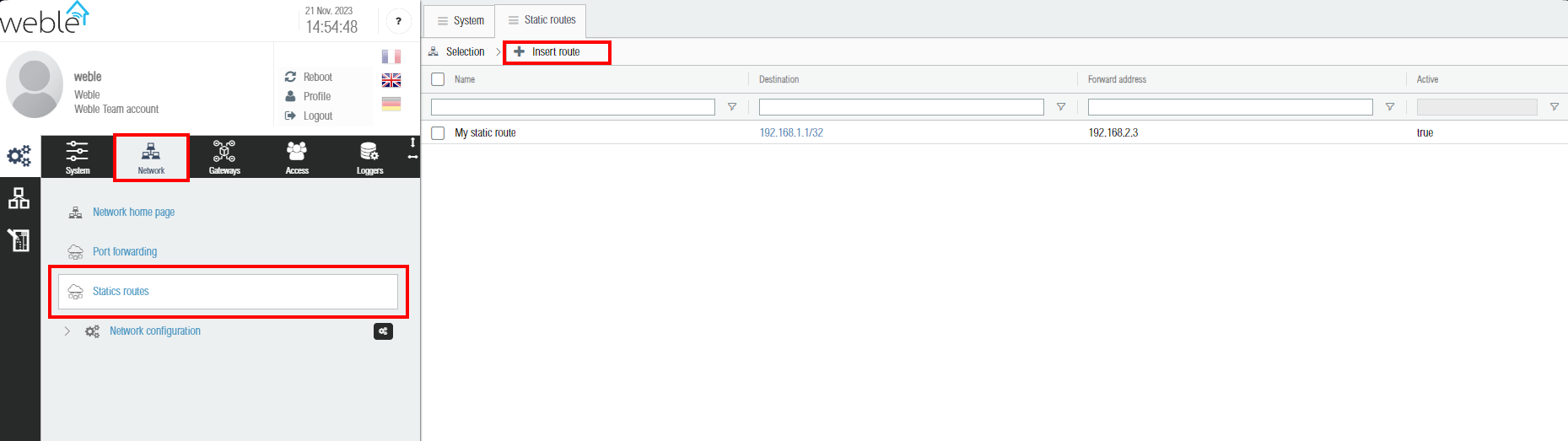
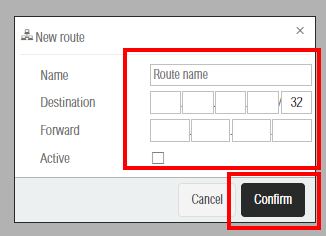
¶ Update a static route
To change the destination or the gateway of a route, delete it and create it again: a gateway edited in the table is saved but not applied to the running route.
¶ DHCP Server
Tick DHCP Server on an interface (ETH0, WAN or Wi-Fi hotspot) to hand out addresses to the equipment connected to it. The interface needs a static address: ticking DHCP Server unticks DHCP client.
| Parameter | Description |
|---|---|
| Start address / End address | Address pool. Both must be in the subnet of the interface; the pool must not contain the address of the device nor its gateway. |
| Netmask | Subnet mask given to the clients. |
| Local gateway | Gives the address of the device as gateway to the clients. |
| Gateway | Gateway given to the clients when Local gateway is not ticked. |
| DNS1 / DNS2 | DNS servers given to the clients. |
¶ Address reservations
Open DHCP Server in the Network menu and choose the interface. New reservation gives a fixed address to a device: enter a Label, its MAC address and the IP address, and tick Active. Reservations are served only while the DHCP server of that interface is on. Edit a reservation in the table; select it and click Remove reservation to delete it.
¶ Serial bridges
The TCP ↔ Serial and Serial ↔ TCP entries carry raw serial data over TCP, without a driver: a PC tool can reach a serial device connected to the device, or a driver can use a remote serial-to-Ethernet converter as a local serial port. Fields, status table, precautions and troubleshooting: see Serial bridges.
Do not use the same serial port in a bridge and in a gateway. Reach a bridge through the Weble VPN or a restricted network rather than forwarding its port.
¶ Date and time
The time source is chosen in the Datetime configuration section of the System configuration. Mode can be NTP (default), defined, Custom NTP or From DHCP. See System configuration for the details of each mode.
In From DHCP mode, the device uses the NTP servers given by the DHCP server and resynchronises every 4 hours. Change this with NTP sync. interval (ms), 14400000 by default.
¶ Network diagnostics
The Terminal box of the System page runs a diagnostics console. Type help to list the commands. The list depends on the rights of your role. The terminal is not available on Windows.
| Command | Description |
|---|---|
ping, ip, ifconfig, traceroute |
Standard network tools. Each is listed only if it is installed on the device. |
dns <host> |
Resolves a host name and shows the DNS servers used. |
tcp <host> <port> |
Tests a TCP port from the device: OPEN, TIMEOUT after 8 seconds, or FAILED. |
tls <host> [port] |
Performs a TLS handshake (port 443 by default) and shows the protocol, the certificate chain, its validity, and whether the device trusts it. |
¶ Troubleshooting
If you lose access to the device after a network change:
- Wait for the end of the restoration time if you ticked Restore previous configuration if not confirmed (see Applying network settings).
- If the Secondary address of ETH0 is on, connect to it (default
20.20.20.20). - If ETH0 is a DHCP client and no DHCP server answers, connect to its DHCP fallback address (default
20.20.20.21). - As a last resort, the reset button puts Ethernet back to
192.168.1.99: see Reset and recovery.
¶ See also
- LTE modem and SIM card
- Serial bridges
- Serial ports and USB adapters
- Reset and recovery
- Weble VPN
- Peers API: network: scripting the IP configuration
- Securing the device