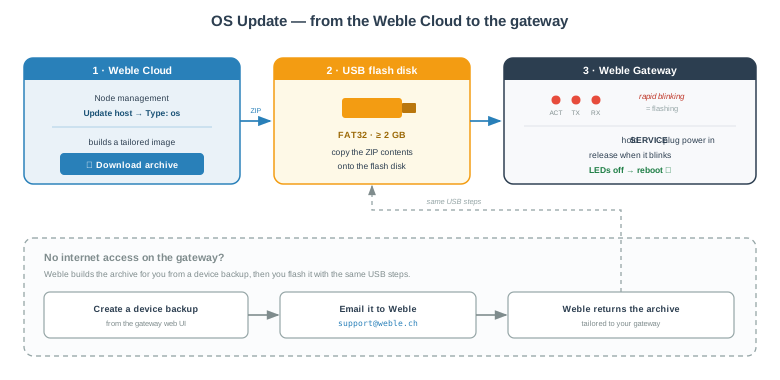
USB-flash procedure for Weble Edge / G110 / G100 — the S485 / S485-KNX models use the balenaEtcher method below
The OS update refreshes the operating system of a Weble gateway — the underlying Armbian-based Linux image, its kernel and system libraries. A new image is built and downloaded from the Weble Cloud, tailored to your specific device, and then written to the gateway. Depending on the model, it is written either from a USB flash disk (Weble Edge / G110 / G100) or by flashing a ready-made disk image with balenaEtcher (Weble S485 / S485-KNX).
Because the image is produced from your device's own record in the cloud, the gateway keeps its identity and configuration: after the update it reboots and comes back online with all of its gateways, routes, views, and settings in place.
Prerequisite — release r719 or later. The OS update is available from release r719 onwards. Before starting this procedure, make sure the gateway is running release r719 (update it to r719 first if needed — see Releases). Do not begin the OS update on an earlier release.
OS updates are currently available for the Weble Edge, Weble G110 / G100 and Weble S485 / S485-KNX models. The method depends on the model: Edge / G110 / G100 are flashed from a USB flash disk, while S485 / S485-KNX are written with a ready-made image using balenaEtcher. This updates the operating system itself — it is distinct from the day-to-day application updates delivered over the network (see Releases). If you are unsure which applies to your hardware, contact Weble.
¶ When to update the OS
An OS update is a low-level maintenance operation. You typically perform it to:
- Apply the latest operating-system security patches and updated system libraries.
- Resolve a low-level issue (kernel, storage, drivers) that a normal application update cannot fix.
- Move to a newer OS base required by new features.
- Follow a recommendation from Weble support.
The OS update rewrites the system partition of the device. Plan it during a service window, keep the power stable throughout, and make sure you have a recent backup of the gateway before you start.
¶ Overview
Every update begins by downloading the tailored OS from the Weble Cloud. How you write it to the gateway then depends on the model:
- Weble Edge / G110 / G100 — copy the archive onto a USB flash disk and flash the device with the SERVICE button.
- Weble S485 / S485-KNX — write the generated disk image to the gateway's storage with balenaEtcher.
If the gateway has no access to the Weble Cloud, the image can be prepared for you by Weble — see No cloud access.
¶ 1. Download the OS archive from the cloud
The OS archive is generated from the Weble Cloud — open Node management (under VPN Management) and locate the gateway you want to update.
- In the host list, select the gateway.
- Open its actions menu and choose Update host.
- In the Update dialog, set Type to os, then enter the gateway's Authentication — the Username (default
admin) and its current Password. If the password was never changed, this is the factory password printed on the device label (devices prepared from version 9.1): see First start. - Click Confirm. The cloud starts building the OS image for this specific device; this can take a moment.
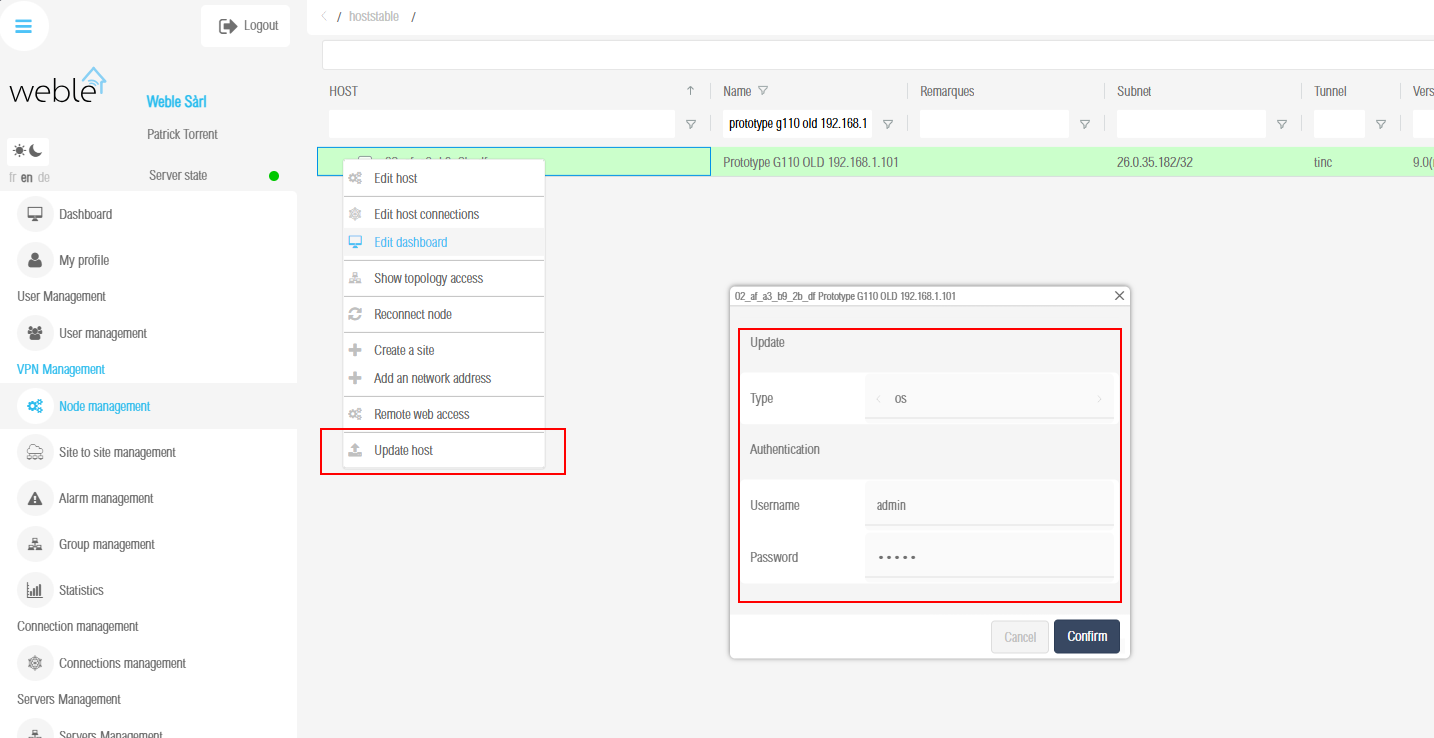
Node management → Update host → Type: os, then Confirm
- When the build is finished the dialog shows Done — The archive is ready to download. Click Download archive and save the file to your computer.
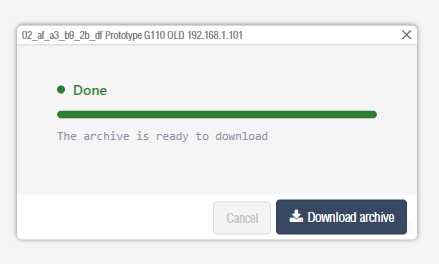
The archive is ready — download it to your computer
The download is a ZIP archive of files for Weble Edge / G110 / G100, and a ready-to-flash disk image for Weble S485 / S485-KNX. Follow the section that matches your model below.
¶ 2. Weble Edge / G110 / G100 — USB flash disk
For the Weble Edge, G110 and G100 models, the update is copied onto a USB flash disk and written to the device with the SERVICE button.
¶ Prepare the USB flash disk
- Format a USB flash disk as FAT32, with a capacity of at least 2 GB. On Windows, a free open-source tool such as Rufus formats a disk as FAT32 in a few clicks.
- Extract the downloaded ZIP archive and copy its contents (the files inside the archive, not the ZIP file itself) to the root of the flash disk.
Use the extracted files, not the ZIP. The flash disk must contain the archive's contents directly at its root, or the gateway will not detect the update.
¶ Flash the gateway
With the prepared flash disk in hand, flash the device:
- Unplug the power supply from the gateway and insert the flash disk into the device's USB port.
- Press and hold the SERVICE button on the front of the device.
- Plug the power back in while still holding SERVICE. The gateway automatically starts flashing the OS — indicated by rapid blinking of the ACT, TX and RX LEDs.
- You can now release the SERVICE button.
- The process is complete when the LEDs switch off and the device reboots. The gateway restarts on the new OS.
Do not remove power or the flash disk while the LEDs are blinking. Interrupting the flashing process can leave the device unable to boot. Flashing usually takes a few minutes.
¶ 3. Weble S485 / S485-KNX — balenaEtcher image
For the Weble S485 and S485-KNX models, the cloud generates a complete, ready-to-use disk image. There is no FAT32 copy and no SERVICE-button step — you simply write the image to the gateway's storage with balenaEtcher, a free, open-source imaging tool.
- Download the generated image from the cloud (see step 1). For these models the archive is a full disk image.
- Install balenaEtcher (Windows, macOS, Linux — free and open source, by balena).
- Insert the gateway's storage medium (SD card) into your computer with a card reader.
- Open balenaEtcher, click Flash from file and select the downloaded image.
- Click Select target and choose the gateway's storage medium. Check carefully that you picked the correct drive.
- Click Flash! and wait for balenaEtcher to write and then validate the image.
- When it finishes, put the storage medium back into the gateway and power it on. The device boots on the new OS.
balenaEtcher erases the whole target drive. Make sure the selected target is the gateway's storage medium — not your computer's disk or another USB drive.
¶ 4. After the update
- The gateway reboots on the new OS and, if it has connectivity, reconnects to the Weble Cloud automatically. Its gateways, routes, and views are preserved.
- Check that the device is back online in Node management and that its version is up to date on the Releases page.
- Remove the USB flash disk once the Edge / G110 / G100 has rebooted. (S485 / S485-KNX boot from their own storage — there is nothing to remove.)
¶ No cloud access
The OS image is personalised: it embeds the gateway's configuration and cloud identity so the device returns to service with all of its settings after flashing. The Weble Cloud normally reads that information from the device itself — which requires the gateway to be reachable online.
If the gateway cannot reach the Weble Cloud (no internet at the site, an isolated network, or the VPN is down), Weble can build the archive for you from a backup of the device:
- Create a full backup of the gateway from its web interface (Administration → System → Backup). The backup contains the configuration and identity Weble needs to build a matching image.
- Email the backup to support@Weble.ch, indicating the device model and, if you have it, its serial number / identifier.
- Weble builds the OS archive or image tailored to your gateway and returns it to you.
- Once you receive it, continue with the procedure for your model — the USB flash disk method (Edge / G110 / G100) or the balenaEtcher method (S485 / S485-KNX). The on-device procedure is exactly the same.
This route also lets you update gateways on offline or air-gapped networks: the personalised image is prepared off-site and only the flashing happens on the device.